#FreeSoftwareAdvent
Uncategorized
21
Posts
4
Posters
43
Views
-
Free Software that I rely on. One per day, I guess.
Okay.... Day 1....
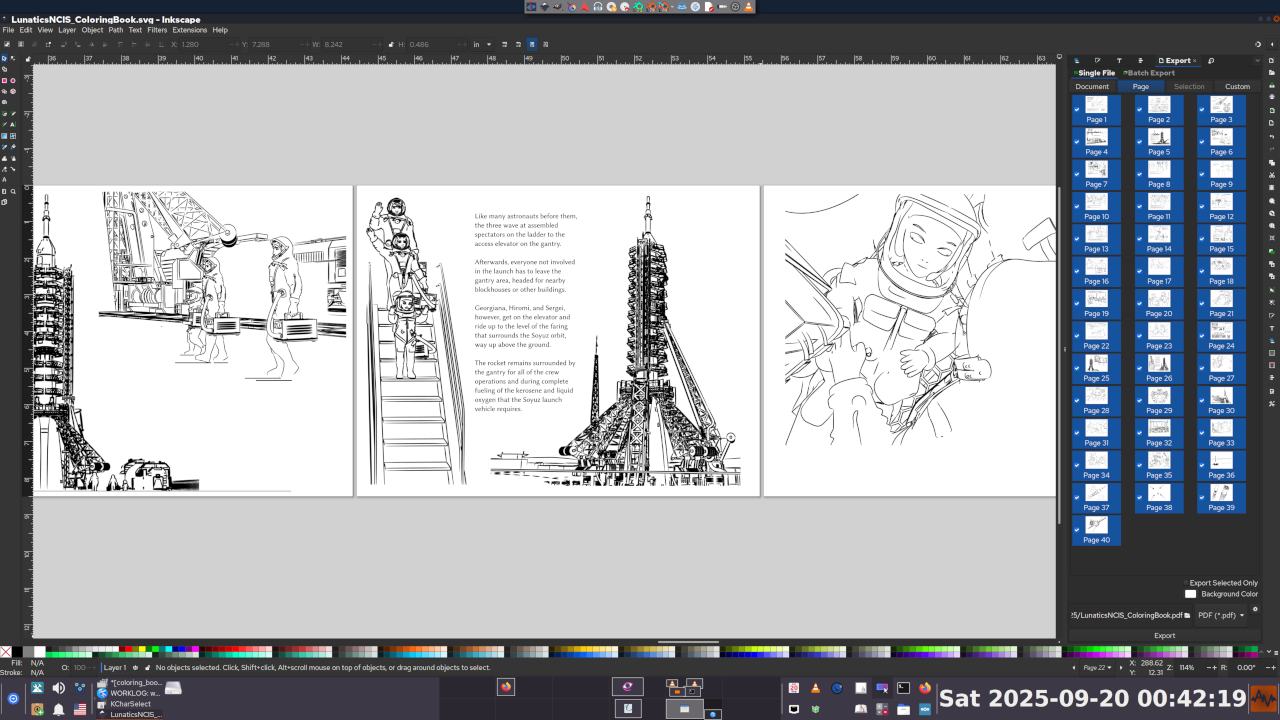
Inkscape
A vector graphics editor (edits SVG documents).
I use this in a lot of different ways whenever I need a drawing:
* Presentation slides
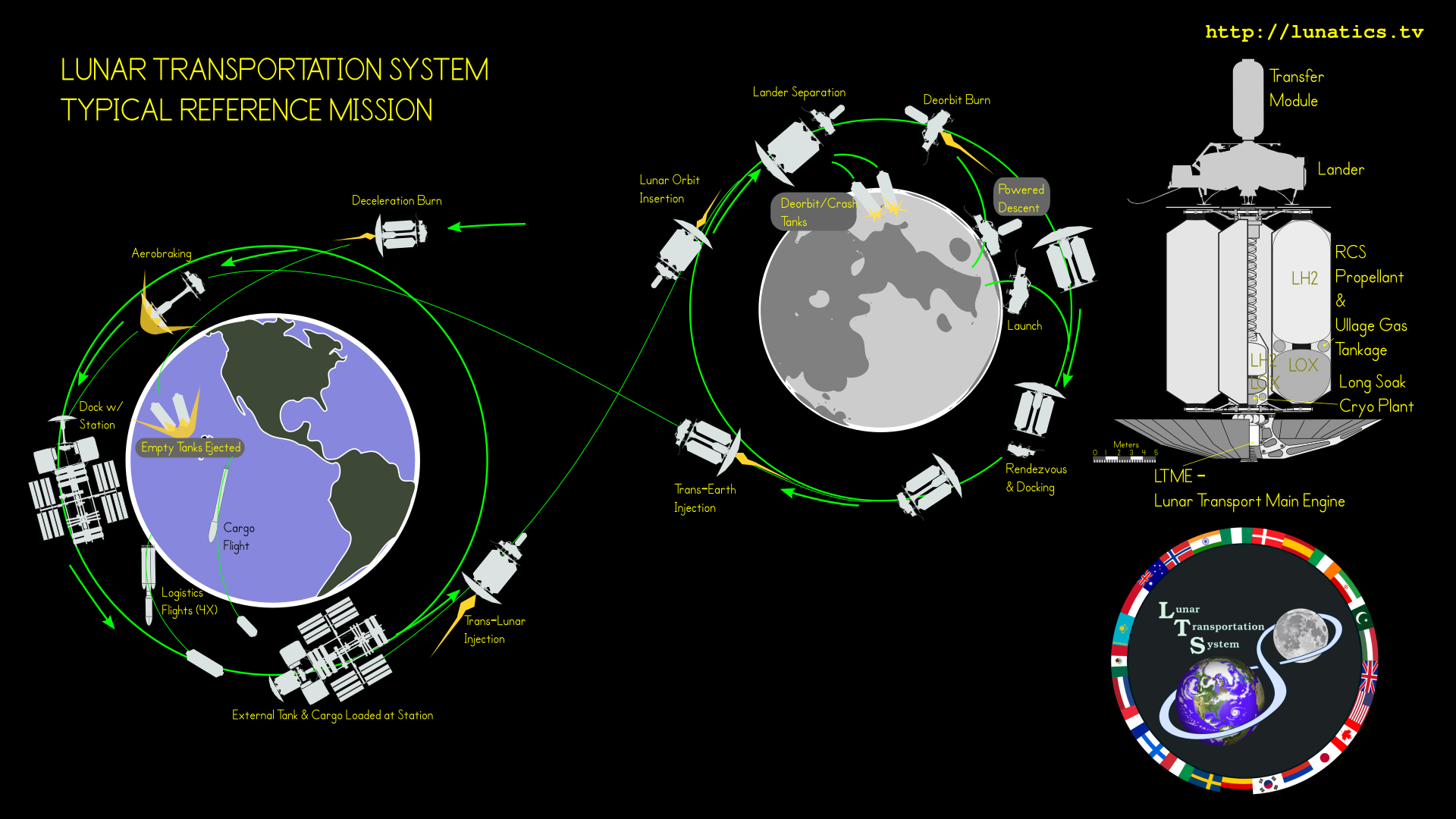
* Graphic illustrations/diagrams
* "Decal" graphics for 3D textures
* Layout of images or other graphics
* Video poster/cover graphics
* Book designAlso included in most desktop Linux distributions, I believe.
-
Free Software that I rely on. One per day, I guess.
Okay.... Day 1....
Inkscape
A vector graphics editor (edits SVG documents).
I use this in a lot of different ways whenever I need a drawing:
* Presentation slides
* Graphic illustrations/diagrams
* "Decal" graphics for 3D textures
* Layout of images or other graphics
* Video poster/cover graphics
* Book designAlso included in most desktop Linux distributions, I believe.
Free Software that I rely on. One per day, I guess.
Day 2:
Gnu Image Manipulation Program
Known as #GIMP or as #GnuIMP by those who don't like the other name.
This is my go-to tool for basic image processing of photos and images for publication. It's a pretty common workflow for me to crop and/or enhance photos in Gimp and then load the output into Inkscape for layout work.
Also, FWIW, I learned it before I learned Photoshop, which frankly seemed kind of like a backward step to me, particularly in the way that Photoshop filters never seemed to have any controls (at the time -- this was 25 years ago and I haven't used Photoshop since then).
Which fuels my general belief that terms like "more intuitive" or "more powerful" are mostly a function of what you are familiar with.
It's one of the earliest graphics creation software packages I learned on Linux, and so it's become so much second nature that I hardly think about it anymore.
These days I use it all the time to crop and rescale screen captures, so I've attached one of cropping a screencap of itself.
-
Free Software that I rely on. One per day, I guess.
Day 2:
Gnu Image Manipulation Program
Known as #GIMP or as #GnuIMP by those who don't like the other name.
This is my go-to tool for basic image processing of photos and images for publication. It's a pretty common workflow for me to crop and/or enhance photos in Gimp and then load the output into Inkscape for layout work.
Also, FWIW, I learned it before I learned Photoshop, which frankly seemed kind of like a backward step to me, particularly in the way that Photoshop filters never seemed to have any controls (at the time -- this was 25 years ago and I haven't used Photoshop since then).
Which fuels my general belief that terms like "more intuitive" or "more powerful" are mostly a function of what you are familiar with.
It's one of the earliest graphics creation software packages I learned on Linux, and so it's become so much second nature that I hardly think about it anymore.
These days I use it all the time to crop and rescale screen captures, so I've attached one of cropping a screencap of itself.
Free Software that I rely on. One per day, I guess.
Day 3:
Krita
I think it's particularly important to mention Krita in the context of Inkscape and Gimp to differentiate them. For a long time, I basically thought of Gimp and Krita as competitors, but they serve different goals:
Gimp is, as the name says, for "image manipulation", whereas Krita is a DIGITAL PAINTING application. It is more focused on creating the art in the application than on tweaking existing elements. And while Krita and Gimp have limited vector art capabilities, they come nowhere near Inkscape in that category.
Since I'm not much of a digital painter, though, I have not really put Krita through its paces, nor trained myself extensively on it.
My daughter HAS, and she creates a LOT of character art using it. So she is the real Krita expert in the family. The "KitCAT" logo below is one I commissioned from her as a studio mascot.
But it has some other useful features for me -- the one I use the most is that it can open 16-bit graphics I use for some backdrop textures in Blender and also the Multilayer EXR files generated from Blender. This makes it the easiest way for me to check them (the attachment below shows a recent "Ink" render, including masks for "billboard extras").
-
 undefined valhalla@social.gl-como.it shared this topic on
 undefined oblomov@sociale.network shared this topic on
-
Free Software that I rely on. One per day, I guess.
Day 3:
Krita
I think it's particularly important to mention Krita in the context of Inkscape and Gimp to differentiate them. For a long time, I basically thought of Gimp and Krita as competitors, but they serve different goals:
Gimp is, as the name says, for "image manipulation", whereas Krita is a DIGITAL PAINTING application. It is more focused on creating the art in the application than on tweaking existing elements. And while Krita and Gimp have limited vector art capabilities, they come nowhere near Inkscape in that category.
Since I'm not much of a digital painter, though, I have not really put Krita through its paces, nor trained myself extensively on it.
My daughter HAS, and she creates a LOT of character art using it. So she is the real Krita expert in the family. The "KitCAT" logo below is one I commissioned from her as a studio mascot.
But it has some other useful features for me -- the one I use the most is that it can open 16-bit graphics I use for some backdrop textures in Blender and also the Multilayer EXR files generated from Blender. This makes it the easiest way for me to check them (the attachment below shows a recent "Ink" render, including masks for "billboard extras").
Free Software that I rely on. One per day.
Day 4:
Papagayo NG
This one fills a very important niche in my pipeline. It is a tool to make it much easier to line up lip movements to speech.
This is not an AI tool and does not do the alignment for you, but it makes it much it easier to do.
We used this extensively in "Lunatics!", particularly for the long dialogues in the Press Conference.
Morevna Project maintains this program, which is a fork of the original "Papagayo" with some enhancements. Hence the "NG":
https://morevnaproject.org/papagayo-ng/
I've attached the 2015 "2-Min Tutorial" in which I briefly explained how to use the program.
#FreeSoftwareAdvent #Papagayo #PapagayoNG #Lipsync #Animation
-
Free Software that I rely on. One per day.
Day 4:
Papagayo NG
This one fills a very important niche in my pipeline. It is a tool to make it much easier to line up lip movements to speech.
This is not an AI tool and does not do the alignment for you, but it makes it much it easier to do.
We used this extensively in "Lunatics!", particularly for the long dialogues in the Press Conference.
Morevna Project maintains this program, which is a fork of the original "Papagayo" with some enhancements. Hence the "NG":
https://morevnaproject.org/papagayo-ng/
I've attached the 2015 "2-Min Tutorial" in which I briefly explained how to use the program.
#FreeSoftwareAdvent #Papagayo #PapagayoNG #Lipsync #Animation
Free Software that I rely on. One per day.
Day 5:
Wordpress
Here's a program I regularly use at least once a month when I write up my project summaries. And I've been using it for a little over ten years now.
It is both a blogging platform and a content management system, which makes it a very good hub for my site.
At current count, I have published 386 articles and 3537 images on this site. I think I'm getting my investment back on this one.
I currently get the program via YunoHost:
https://apps.yunohost.org/app/wordpress
That page includes links to the upstream sites if you'd rather install it some other way. There are MANY options.
#FreeSoftwareAdvent #Wordpress #Blogging #Writing #Illustration
-
Free Software that I rely on. One per day.
Day 5:
Wordpress
Here's a program I regularly use at least once a month when I write up my project summaries. And I've been using it for a little over ten years now.
It is both a blogging platform and a content management system, which makes it a very good hub for my site.
At current count, I have published 386 articles and 3537 images on this site. I think I'm getting my investment back on this one.
I currently get the program via YunoHost:
https://apps.yunohost.org/app/wordpress
That page includes links to the upstream sites if you'd rather install it some other way. There are MANY options.
#FreeSoftwareAdvent #Wordpress #Blogging #Writing #Illustration
Free Software that I rely on. One per day.
Day 6:
Audacity
Another old one! I think I've been using Audacity for about 25 years, now.
It is a "destructive audio editor", which means it is kind of the audio equivalent to a bitmap editor in graphics -- you are actually changing the values of the samples in the recording when you make changes, rather than applying filters on top of them as non-destructive editors do.
This makes Audacity particularly good at constructing sound effects from recorded sources.
I do most of my audio processing in Audacity, but even if I do involve a non-destructive "DAW" platform, I would probably continue to use Audacity for creating effects and recording voices.
It is an excellent tool for recording audio directly or reviewing and selecting audio from field recordings.
-
Free Software that I rely on. One per day.
Day 6:
Audacity
Another old one! I think I've been using Audacity for about 25 years, now.
It is a "destructive audio editor", which means it is kind of the audio equivalent to a bitmap editor in graphics -- you are actually changing the values of the samples in the recording when you make changes, rather than applying filters on top of them as non-destructive editors do.
This makes Audacity particularly good at constructing sound effects from recorded sources.
I do most of my audio processing in Audacity, but even if I do involve a non-destructive "DAW" platform, I would probably continue to use Audacity for creating effects and recording voices.
It is an excellent tool for recording audio directly or reviewing and selecting audio from field recordings.
Free Software that I rely on. One per day.
Day 7:
ImageMagick
This is actually a small suite of tools that can be used from the command line, although it also has a GUI interface. Pretty old school software; been around for ages; still very handy.
Not as powerful as Gimp or Krita for manipulating a single image, but with ImageMagick and a bash script you can make changes en masse ("convert" and "mogrify" -- which does the job in place). You can quickly check the format and size of images from the command line ("identify") or simply pop up the image with "display".
Finally, with "compose" you can make an image combining multiple images in many different ways, including making a grid with or without labels.
I don't use it as much as I used to, but it is still the simplest way to check image content from the command line. And it's really the only option when you need to change a whole lot of images at once.
Also often used on server back ends to manipulate images for display in web applications.
#FreeSoftwareAdvent #ImageMagick #Graphics #FreeSoftware #OpenSource
-
 undefined paoloredaelli@mastodon.uno shared this topic on
-
Free Software that I rely on. One per day.
Day 7:
ImageMagick
This is actually a small suite of tools that can be used from the command line, although it also has a GUI interface. Pretty old school software; been around for ages; still very handy.
Not as powerful as Gimp or Krita for manipulating a single image, but with ImageMagick and a bash script you can make changes en masse ("convert" and "mogrify" -- which does the job in place). You can quickly check the format and size of images from the command line ("identify") or simply pop up the image with "display".
Finally, with "compose" you can make an image combining multiple images in many different ways, including making a grid with or without labels.
I don't use it as much as I used to, but it is still the simplest way to check image content from the command line. And it's really the only option when you need to change a whole lot of images at once.
Also often used on server back ends to manipulate images for display in web applications.
#FreeSoftwareAdvent #ImageMagick #Graphics #FreeSoftware #OpenSource
Free Software that I rely on. One per day.
Day 8:
Blender
This one's a gimme. Blender is the single most important free software tool in my project toolbox.
Weirdly, I still use Blender 2.79, because I built my project on the "Blender Internal" render which they removed in 2.8 (more about that in a comment). Meanwhile Blender is on at least v4 now.
I'm sure you've heard of it, but you may not realize Blender's full scope. It is designed to be a complete 3D animation suite in one package:
* 3D surface modeler
* Materials editor, shader, rendering engine
* 3D armature & shape key animation
* 2D annotations
* 2D "grease pencil" animation tool
* video clip editor with rotoscoping and tracking for VFX work
* video sequence editor for editing clips togetherIt is pretty complete, and many people have made animated films entirely in Blender, although it can also be integrated into a pipeline with other tools, as I've done on Lunatics Project.
It's popular with indy film makers and Hollywood alike.
#FreeSoftwareAdvent #Blender3D #Blender #Animation #FreeSoftware #OpenSource
-
Free Software that I rely on. One per day.
Day 8:
Blender
This one's a gimme. Blender is the single most important free software tool in my project toolbox.
Weirdly, I still use Blender 2.79, because I built my project on the "Blender Internal" render which they removed in 2.8 (more about that in a comment). Meanwhile Blender is on at least v4 now.
I'm sure you've heard of it, but you may not realize Blender's full scope. It is designed to be a complete 3D animation suite in one package:
* 3D surface modeler
* Materials editor, shader, rendering engine
* 3D armature & shape key animation
* 2D annotations
* 2D "grease pencil" animation tool
* video clip editor with rotoscoping and tracking for VFX work
* video sequence editor for editing clips togetherIt is pretty complete, and many people have made animated films entirely in Blender, although it can also be integrated into a pipeline with other tools, as I've done on Lunatics Project.
It's popular with indy film makers and Hollywood alike.
#FreeSoftwareAdvent #Blender3D #Blender #Animation #FreeSoftware #OpenSource
Free Software that I rely on. One per day.
Day 9:
YunoHost
This is technically more of a distribution than an individual software. There's a portal, and a large volunteer packaging effort to create apps for it. And a large catalog of applications already packaged.
I definitely rely on it. So I'm counting it.
YunoHost is how I have Wordpress (which I've already mentioned) installed -- along with other software I haven't got to yet.
It is based on Debian Linux: a particular install with applications already configured to work on it, pretty close to "plug and play". It's like the packaging systems for Linux desktop systems -- but for the Internet.
It makes managing a web application site SO much easier. I decided to adopt it as the basis of my "virtual studio" instead of trying to write something new.
#FreeSoftwareAdvent #YunoHost #Debian #FreeSoftware #OpenSource
-
Free Software that I rely on. One per day.
Day 9:
YunoHost
This is technically more of a distribution than an individual software. There's a portal, and a large volunteer packaging effort to create apps for it. And a large catalog of applications already packaged.
I definitely rely on it. So I'm counting it.
YunoHost is how I have Wordpress (which I've already mentioned) installed -- along with other software I haven't got to yet.
It is based on Debian Linux: a particular install with applications already configured to work on it, pretty close to "plug and play". It's like the packaging systems for Linux desktop systems -- but for the Internet.
It makes managing a web application site SO much easier. I decided to adopt it as the basis of my "virtual studio" instead of trying to write something new.
#FreeSoftwareAdvent #YunoHost #Debian #FreeSoftware #OpenSource
Free Software that I rely on. One per day.
Day 10:
Open Camera
I'm stuck on my phone today, so today's free software is an Android smartphone app from the F-Droid repo: Open Camera.
I use it to record the "real life" parts for my daily logs. A particularly useful feature is the "photo stamp" so I have the date and time on screen.
-
Free Software that I rely on. One per day.
Day 10:
Open Camera
I'm stuck on my phone today, so today's free software is an Android smartphone app from the F-Droid repo: Open Camera.
I use it to record the "real life" parts for my daily logs. A particularly useful feature is the "photo stamp" so I have the date and time on screen.
Free Software that I rely on. One per day.
Day 11:
Seafile
I like Seafile, it's simple. It does one thing well, which is make it easy to share files between different machines. It reminds me of Google Drive before they junked it up.
And if you run your own Seafile server on your LAN, this is totally secure, without your data ever having to leave your control at all.
It's weird that that has become a luxury, but such is 21st century corporate-platform computing.
Anyway, none of that with Seafile running on your own LAN. I run it on my household file server, with clients on my phone and my workstation.
For several years, this has been my go-to solution for transferring photos and note files from my phone to my workstation, where I edit my logs.
-
Free Software that I rely on. One per day.
Day 11:
Seafile
I like Seafile, it's simple. It does one thing well, which is make it easy to share files between different machines. It reminds me of Google Drive before they junked it up.
And if you run your own Seafile server on your LAN, this is totally secure, without your data ever having to leave your control at all.
It's weird that that has become a luxury, but such is 21st century corporate-platform computing.
Anyway, none of that with Seafile running on your own LAN. I run it on my household file server, with clients on my phone and my workstation.
For several years, this has been my go-to solution for transferring photos and note files from my phone to my workstation, where I edit my logs.
Free Software that I rely on. One per day.
Day 12:
Gwenview
For this list, I've been trying to focus not so much on the most exciting applications as the ones I use so often I forget they exist -- and Gwenview definitely fits in that category. I literally use it every day.
It's an image/multimedia browsing utility. Ostensibly for KDE, although I routinely use it in XFCE.
In any case, it's very low-maintenance and the fastest way for me to check out a tree of images -- whether they're PR collections or a series of frames in a PNG stream. Helps a lot when I'm looking for an image and can't quite remember what I called the file.
I've tried some other image browsing apps, but this is the one I keep coming back to.
https://apps.kde.org/gwenview/
#FreeSoftwareAdvent #Gwenview #Images #Graphics #FreeSoftware #OpenSource
-
Free Software that I rely on. One per day.
Day 12:
Gwenview
For this list, I've been trying to focus not so much on the most exciting applications as the ones I use so often I forget they exist -- and Gwenview definitely fits in that category. I literally use it every day.
It's an image/multimedia browsing utility. Ostensibly for KDE, although I routinely use it in XFCE.
In any case, it's very low-maintenance and the fastest way for me to check out a tree of images -- whether they're PR collections or a series of frames in a PNG stream. Helps a lot when I'm looking for an image and can't quite remember what I called the file.
I've tried some other image browsing apps, but this is the one I keep coming back to.
https://apps.kde.org/gwenview/
#FreeSoftwareAdvent #Gwenview #Images #Graphics #FreeSoftware #OpenSource
Free Software that I rely on. One per day.
Day 13:
VideoLAN Client, a.k.a. VLC
Some distro maintainers apparently hate it. It is very customizable, which results in multiple and frequent UI changes.
But damn is it useful! I MUST have it.
I have found very view video formats that VLC won't play, at least if you install all the codecs (some of which are non-free, which is why you have to install them later -- but that's not VLC's fault).
It is my usual music player, and video player. I use it to check my newly-edited videos.
Somewhere in there is a way to edit metadata in files -- I know I've used it, though not in a long time.
And if I go to "Media -> Convert/Save", it can convert video formats, which can be a life-saver.
If my computer should shut down suddenly, my screenlogging script will produce a corrupted video. VLC can read it and convert into a corrected format that other programs can read. Handy!
#FreeSoftwareAdvent #VLC #VideoLan #MusicPlayer #VideoPlayer #Multimedia
-
 undefined stefano@mastodon.bsd.cafe shared this topic on
-
Free Software that I rely on. One per day.
Day 13:
VideoLAN Client, a.k.a. VLC
Some distro maintainers apparently hate it. It is very customizable, which results in multiple and frequent UI changes.
But damn is it useful! I MUST have it.
I have found very view video formats that VLC won't play, at least if you install all the codecs (some of which are non-free, which is why you have to install them later -- but that's not VLC's fault).
It is my usual music player, and video player. I use it to check my newly-edited videos.
Somewhere in there is a way to edit metadata in files -- I know I've used it, though not in a long time.
And if I go to "Media -> Convert/Save", it can convert video formats, which can be a life-saver.
If my computer should shut down suddenly, my screenlogging script will produce a corrupted video. VLC can read it and convert into a corrected format that other programs can read. Handy!
#FreeSoftwareAdvent #VLC #VideoLan #MusicPlayer #VideoPlayer #Multimedia
@TerryHancock Which distros hate #VLC? I always found it available in #Debian!
-
Free Software that I rely on. One per day.
Day 9:
YunoHost
This is technically more of a distribution than an individual software. There's a portal, and a large volunteer packaging effort to create apps for it. And a large catalog of applications already packaged.
I definitely rely on it. So I'm counting it.
YunoHost is how I have Wordpress (which I've already mentioned) installed -- along with other software I haven't got to yet.
It is based on Debian Linux: a particular install with applications already configured to work on it, pretty close to "plug and play". It's like the packaging systems for Linux desktop systems -- but for the Internet.
It makes managing a web application site SO much easier. I decided to adopt it as the basis of my "virtual studio" instead of trying to write something new.
#FreeSoftwareAdvent #YunoHost #Debian #FreeSoftware #OpenSource
@TerryHancock Hey i´m kinda curious about yunohost. What i understand about yuno is that it would be some kinda distribution to install on a server, or am i wrong? I´m now using an arch linux with i3wm, yuno would satisfy me? Or only in a context of servers would yunohost be interesting?
-
@TerryHancock Hey i´m kinda curious about yunohost. What i understand about yuno is that it would be some kinda distribution to install on a server, or am i wrong? I´m now using an arch linux with i3wm, yuno would satisfy me? Or only in a context of servers would yunohost be interesting?
YunoHost is officially a derivative distribution of Debian, and now follows the Debian versioning system -- so "YunoHost 12" is based on "Debian 12", etc.
YunoHost is exclusively a server-oriented distribution. It has no desktop environment -- you interact via command line or web.
If I had to, I could get a desktop environment running on the same machine as YunoHost, but I can think of several reasons why that's a bad idea.
FWIW, I currently run AV Linux on my desktop workstation.
-
YunoHost is officially a derivative distribution of Debian, and now follows the Debian versioning system -- so "YunoHost 12" is based on "Debian 12", etc.
YunoHost is exclusively a server-oriented distribution. It has no desktop environment -- you interact via command line or web.
If I had to, I could get a desktop environment running on the same machine as YunoHost, but I can think of several reasons why that's a bad idea.
FWIW, I currently run AV Linux on my desktop workstation.
@TerryHancock i see! Well, i have a kinda broken laptop that i want to transform in a server, maybe YunoHost can be an option. I like the idea of Debian but never used it due to the necessity of non-free drivers, especially on wifi, one day i´ll make this step forward!
I never heard about this AV linux btw! looks interesting!
-
@TerryHancock i see! Well, i have a kinda broken laptop that i want to transform in a server, maybe YunoHost can be an option. I like the idea of Debian but never used it due to the necessity of non-free drivers, especially on wifi, one day i´ll make this step forward!
I never heard about this AV linux btw! looks interesting!
AV is derived from MX which is derived from Debian. It's a multimedia focused distribution.
It provides both Systemd and Sys5Init boot modes, uses XFCE as the default, relies on APT (.deb) packages, and provides support for a wide range of multimedia applications (some are AppImages that were converted to DEB packages).
No Snaps, which was my main complaint about Ubuntu Studio (which is otherwise quite good for multimedia, IMHO -- I used it for years).
Support is a bit thin -- I think it's mostly one guy. So I am a little concerned about future stability, but it's a good place for me now at least.
I don't really want to try to adapt Debian to my needs from scratch (then I would be the one guy!).
-
AV is derived from MX which is derived from Debian. It's a multimedia focused distribution.
It provides both Systemd and Sys5Init boot modes, uses XFCE as the default, relies on APT (.deb) packages, and provides support for a wide range of multimedia applications (some are AppImages that were converted to DEB packages).
No Snaps, which was my main complaint about Ubuntu Studio (which is otherwise quite good for multimedia, IMHO -- I used it for years).
Support is a bit thin -- I think it's mostly one guy. So I am a little concerned about future stability, but it's a good place for me now at least.
I don't really want to try to adapt Debian to my needs from scratch (then I would be the one guy!).
@TerryHancock i see, it looks pretty handy on multimedia!
but what is your biggest issue about snaps? i hated it on ubuntu due to the way the distro pushes snap in everyplace, but as a packaging service, i think is pretty handy -
@TerryHancock i see, it looks pretty handy on multimedia!
but what is your biggest issue about snaps? i hated it on ubuntu due to the way the distro pushes snap in everyplace, but as a packaging service, i think is pretty handyI don't like the sandboxing.
I don't like the enforcement of system folder structure.
Linux Standard Base is great for Linux distributions -- and as the name suggests, it's a good *base*.
But for a production environment, there are good reasons to manage projects on separate high-level disk mounts. And if other people don't like that, that's fine -- but when they try to dictate that to me, that's an overstep. I won't put up with it.
And the sandboxing system makes a horrific mess out of the output from "df" with all the loopback devices. I literally had to get in the habit of filtering out loopback devices with grep to see the status of my real disk mounts.
I found this infuriating, and the Ubuntu commitment to Snaps was an irreconcilable difference for me. So I left for a distro that didn't do this to me.
AppImages don't do this stuff. I don't have experience with Flatpak. But I also don't really get what's wrong with just using APT.
Perhaps this makes me a curmudgeon?

🤷♂️


Feed RSS
Gli ultimi otto messaggi ricevuti dalla Federazione
-
@meduz nope, I'm still working on building a gaming pc, but so far I've only bought RAM 🥲
-
Humor Satire Memes (@funnysnarkyjoke.bsky.social)
https://bsky.app/profile/funnysnarkyjoke.bsky.social/post/3mgnbn53gek2b
> Artist: Jake Likes Onions
-
fede (@hymage.bsky.social)
https://bsky.app/profile/hymage.bsky.social/post/3mgnl5p2fhk2o
> Hard times ahead
-
Nina (@nina-75.bsky.social)
https://bsky.app/profile/nina-75.bsky.social/post/3mgmhtpvisk2i
-
Uberbored (@uberbored.bsky.social)
https://bsky.app/profile/uberbored.bsky.social/post/3mgndxhwlrk2u
> Al cuore non si comanda, al cazzo figuriamoci
-
@Gina Wait, you don’t have a Switch 2 yet?

-
@Gina you are being a very bad influence and I'm going to send you the bill!
-
@mariosiniscalchi Referendum, Bartolozzi verità: «Votiamo Sì e ci togliamo di mezzo la magistratura, è un plotone d'esecuzione».